A still lets you decide whether the character, composition and light fit your idea before asking for movement. This is a creative workflow choice, not a claim that it always costs less. Image and video requests each have their own live Credit estimate.
Text to Image workflow facts
Text to Image is a practical place to resolve the opening composition of a new idea. Define a fictional, clearly adult character and the frame you want to review before planning a moving shot. AI Video NSFW keeps image creation and video creation as separate requests, with their own live options and Credit estimates. Use the still to make a decision about subject placement, clothing and light; decide on animation after you have inspected the image.
| Input | Original text prompt describing a fictional 18+ subject |
|---|---|
| Output | A new generated image to review, save, or use in an available Image to Video setup |
| Account | Sign in before submitting a generation request |
| Free sign-up Credits | 25 Credits for new registrations; reward eligibility applies. Check your balance after signing in. |
| Pricing | Review the live Credit estimate before submission |
| Models | Available models and settings come from the live Catalog |
| Privacy | Private by default; storage, retention, and deletion follow the Privacy Policy. |
| Safety | People must be clearly 18+; authorization and informed consent are required |
Model availability and output rights
Current limitations
The live Catalog controls which models, settings, and inputs are available. Direct video continuation and some advanced workflows may be unavailable, and commercial clearance depends on the applicable plan or model terms.
Generated outputs can vary, may not be unique, and are not automatically cleared for commercial use unless a particular plan or model expressly says otherwise.
Find the frame before testing its motion.
Text to Image is a practical place to resolve the opening composition of a new idea. Define a fictional, clearly adult character and the frame you want to review before planning a moving shot. AI Video NSFW keeps image creation and video creation as separate requests, with their own live options and Credit estimates. Use the still to make a decision about subject placement, clothing and light; decide on animation after you have inspected the image.
Build a first frame you can judge
Give Text to Image an ordered brief: subject, framing, setting, then light. Decide what a successful first image would show. The live tool provides available models and output controls, while the prompt explains the visual question you are trying to answer.
- 01
Put the subject inside a specific frame
Name the fictional character and their clearly adult age, then choose medium, full-body or detail framing. State where the subject belongs. This gives the result a composition to assess before you add a long collection of materials or style adjectives.
- 02
Use one lighting idea
For a first attempt, choose a clear relationship such as pink side light and a dark blue background. Describe wardrobe and setting in support of that relationship. Save conflicting lighting treatments for separate comparisons so you know which version you prefer.
- 03
Review the still before buying another step
Read the current estimate, submit only after checking your balance, and inspect the completed result. If you later want motion, make a separate Image to Video request with an authorized saved source and a new estimate. Do not assume one request includes both outputs.
Three ways to test an opening frame
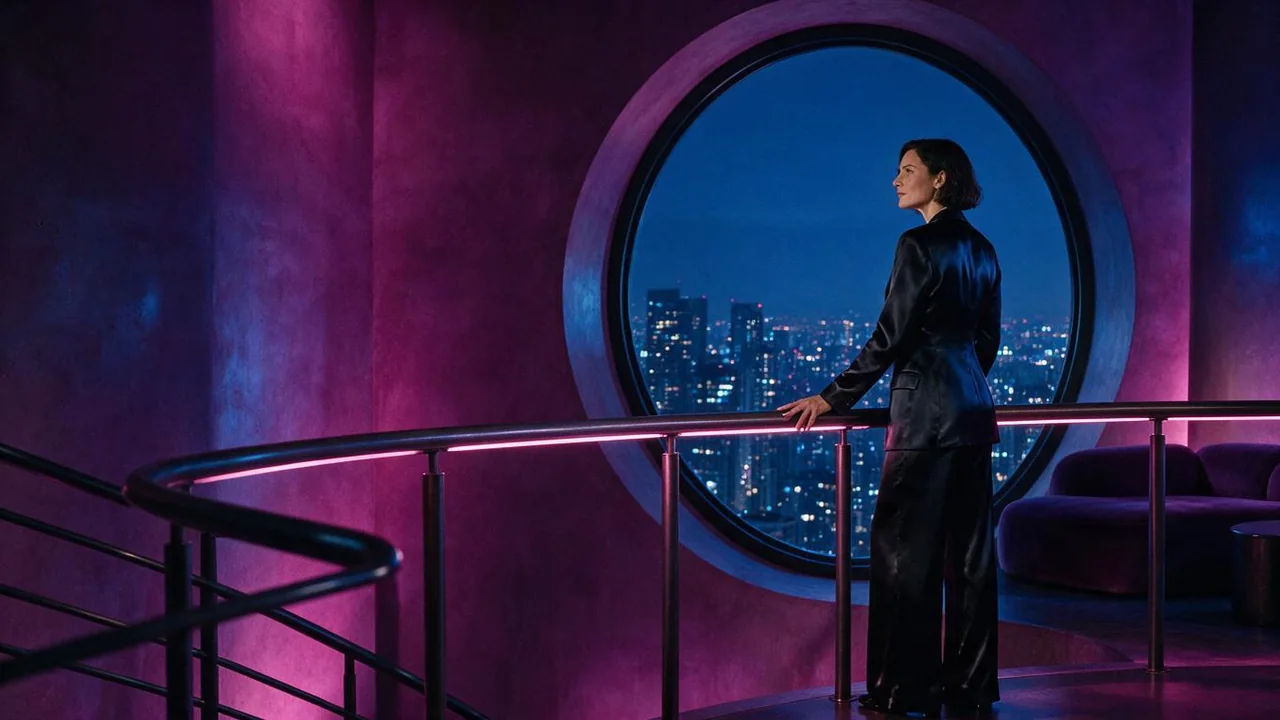
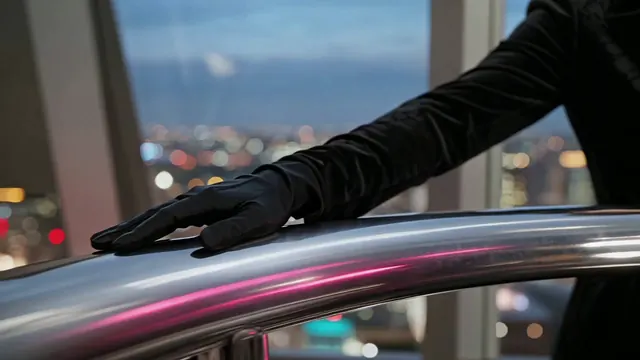
These illustrative compositions are original illustrations created for AI Video NSFW. They show the kinds of framing decisions a prompt can express, not verified live-model outputs or exact reconstruction targets. Choose one visual question and compare its result before adding motion.
Swipe horizontally to explore all three examples.
Leave room for a glance
PromptFictional woman, age 32, fully closed black suit, standing beside a circular window in a violet lounge. Medium-wide frame with negative space toward the window and cobalt city light outside.
The open area gives a later head-turn brief a clear direction.
Separate the subject with light
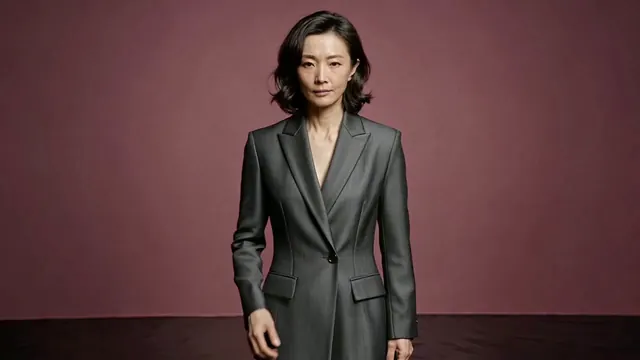
PromptFictional woman, age 36, closed charcoal evening suit, magenta studio background. Medium portrait, pink side light and a restrained dark silhouette; no extra props.
Inspect the face and suit outline before adding background objects.
Compose around a detail
PromptA gloved hand of a clearly adult fictional character resting on a chrome rail, structured black coat, cobalt city bokeh and magenta reflections. No face in frame, close editorial composition.
A detail-led image can establish mood without a complicated pose.
Give the image a destination
Text to Image options are supplied by the live model entry. Pick a canvas that suits the composition, then review the Credit estimate. A landscape reference on this page does not mean every model supports the same ratios, resolutions or image quantities.
| Goal | Focus on | Why it helps |
|---|---|---|
| Plan an opening video composition | An aspect ratio offered by both intended workflows | Check available image choices now and the video tool separately later. Do not assume every image model and video model share identical options. |
| Check a portrait without distractions | A deliberate subject crop | Choose a frame that shows the details you need to review. A very wide setting can hide the face or hands you wanted to inspect. |
| Use the starting allowance deliberately | The complete current estimate | New registrations may receive the one-time 25 Credits when eligible. Check your account balance and each image request rather than estimating an output count. |
| Choose between lighting versions | One stable model and canvas | Keep the setup steady while changing the lighting sentence. Model or canvas changes make a direct visual comparison harder. |
Fix the frame before adding motion
A weak Text to Image result often leaves a composition decision unresolved. Identify the issue in ordinary visual language: too little room, competing lights or a missing focal point. Resolve that decision before using the still as the starting point for another generation.
- The subject is lost in the setting
- Move the character and crop to the beginning of the prompt. Reduce background objects until the main silhouette reads.
- The light contradicts itself
- Keep one primary light direction and a simple background color. Compare a second lighting idea in a separate request.
- Important anatomy is cropped awkwardly
- Request a more deliberate crop and inspect the resulting edges. A prompt does not guarantee correct hands or exact framing.
- The still is attractive but hard to animate
- Choose one plausible next action and check whether the image gives it room. Revise the source composition before moving to the video route.
Text to Image questions
Practical answers about live settings, Credits, account access, and consent-first creation.
Describe a fictional clearly adult subject, the crop, their position in the frame and one lighting relationship. Add a setting and wardrobe that support those choices. Keep the first image focused enough that you can explain what you would change next.
The one-time 25-Credit registration offer is subject to new-account eligibility and anti-abuse checks. The signed-in balance and the live image request estimate determine what you can submit. It does not include a paid subscription or unlimited images.
No. Creating a still and submitting a video are separate workflows. Review and save an image you are authorized to use, then choose a compatible Image to Video setup and review its new estimate before requesting motion.
Keep the model, canvas and output choices unchanged where possible. Change one important sentence, such as the light direction or subject placement, then inspect the same details in both results. Variability remains possible even when other choices stay constant.
No automatic commercial clearance is promised here. Review applicable plan or model terms and confirm the rights needed for the intended use. Results may vary and may not be unique; generating an image does not replace a rights review.
Resolve the opening composition first.
Use Text to Image to test a specific frame, inspect the full live estimate, and decide on the next step after reviewing the result.